Using the dashboard
Everything in Crumbcast can be done in the dashboard, with no code. If you're putting video on a site, in a course or in front of an event audience, start here. Each guide in this section takes one part of it, step by step.
Projects and roles
Your organisation holds its plan, its members and its storage. Its work happens in projects: each has its own assets, live streams, members and settings. The project you're in is at the top left; click it to switch to another, or to make a New project.
What you can do in a project depends on your role in it:
- Viewer: sees its assets, live streams and analytics.
- Editor: also uploads, changes and deletes assets, and runs live streams.
- Admin: also manages the project's settings, keys, tokens and members.
The organisation's owners and admins are admins of every project. When a button you expect isn't there, or a page says only admins can change it, your role is why. Your team explains roles in full.
Getting around
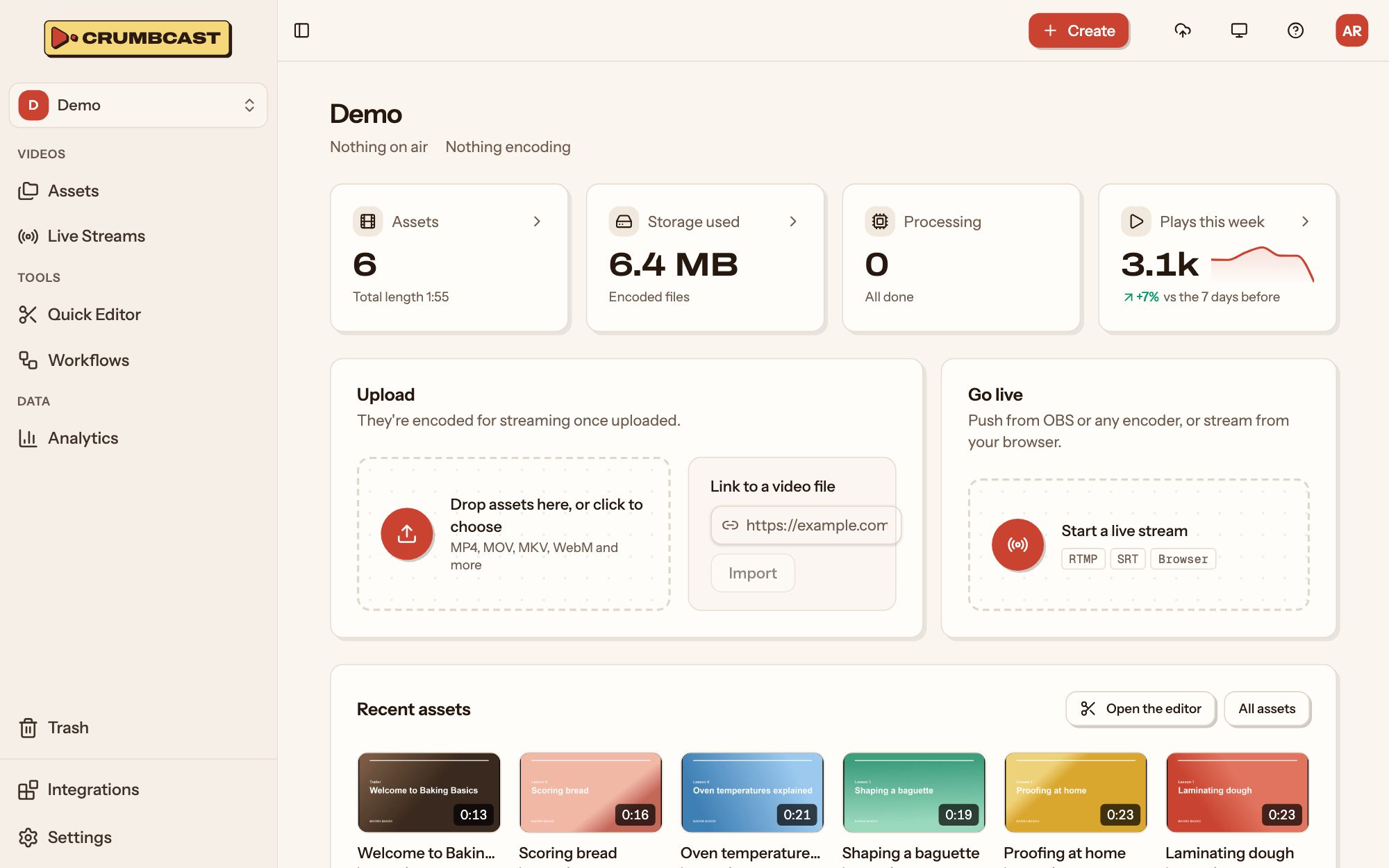
The sidebar on the left has the project's pages:
- Assets: the project's videos, folders and playlists.
- Live Streams: its live streams and their broadcasts.
- Quick Editor: cut, crop and merge videos.
- Workflows: saved settings and steps to run on new videos.
- Analytics: who watched, for how long, and how it played.
- Trash: deleted assets you can still restore.
- Integrations: YouTube, Twitch, Zoom and Vimeo, connected to the project.
- Settings: the project's, the organisation's and your own.
Along the top:
- Create makes something new from any page: upload an asset, import one from a link, record your screen, or start a live stream.
- Uploads and Encodings (the cloud icon) follows what you've sent: each upload, then its encoding. Keep the tab open until an upload finishes; encoding runs on Crumbcast's servers, so you can leave once it starts.
- The theme button switches the dashboard between light, dark and your system's look.
- Help and guides (the question mark) opens these guides.
- Your account menu, at the far right, has your profile and the way out.
The home page
A project's home page shows, at a glance, what's on air and what's still encoding, how many assets it has and how much storage they take, and how many plays it had this week. Below that, an upload box, a way to go live, your most recent assets, and any that failed, so you can open one and see why.
Words you'll see
- An asset is a video in the project: uploaded, imported, recorded, clipped or kept from a live broadcast.
- An encoding is one codec of it (H.264, H.265 or AV1) in every resolution players can pick from.
- A watch page is the video's own page on Crumbcast; an embed is its player on your site.
Some features depend on your plan, and some (live streaming, DRM, chapter suggestions and the integrations) on how your Crumbcast is set up. Where one isn't open to you, the dashboard says why and which plan has it.
The guides
- Adding videos: upload, import, record your screen, bring a Vimeo library over.
- Organising assets: folders, labels, search, and the trash.
- A video's page: its details, encodings and file.
- Who can watch: public, password and signed videos, viewer links, encryption and watermarks.
- Thumbnails and GIFs: the frame players show, timeline previews, GIFs.
- Captions and chapters: upload or generate captions, edit them, add chapters.
- Sharing and embedding: links, embed codes and oEmbed.
- Players: your colours, logo and controls.
- Playlists: videos that play one after the other.
- Quick Editor: cut, crop and merge.
- Workflows: the same settings and steps for every new video.
- Live streaming: go live from OBS or the browser, simulcast, record.
- Analytics: plays, watch time, retention and audience.
- Ads: your ad server's tags in your embeds.
- Integrations: YouTube, Twitch, Zoom and Vimeo.
- Your team: members, projects, single sign-on and the audit log.
- Storage: keep videos in a bucket of your own.
- Plan and billing: your plan, what you've used, and a spend cap.
- Your account: your name, language and password.
- For your developers: API tokens, signing keys and webhooks.