A video's page
Click any asset to open its page. The player is at the top, with what matters at a glance beside it: who can watch, when it was made, its length and size, its encodings, chapters and captions. Below it, tabs hold everything that can be changed.
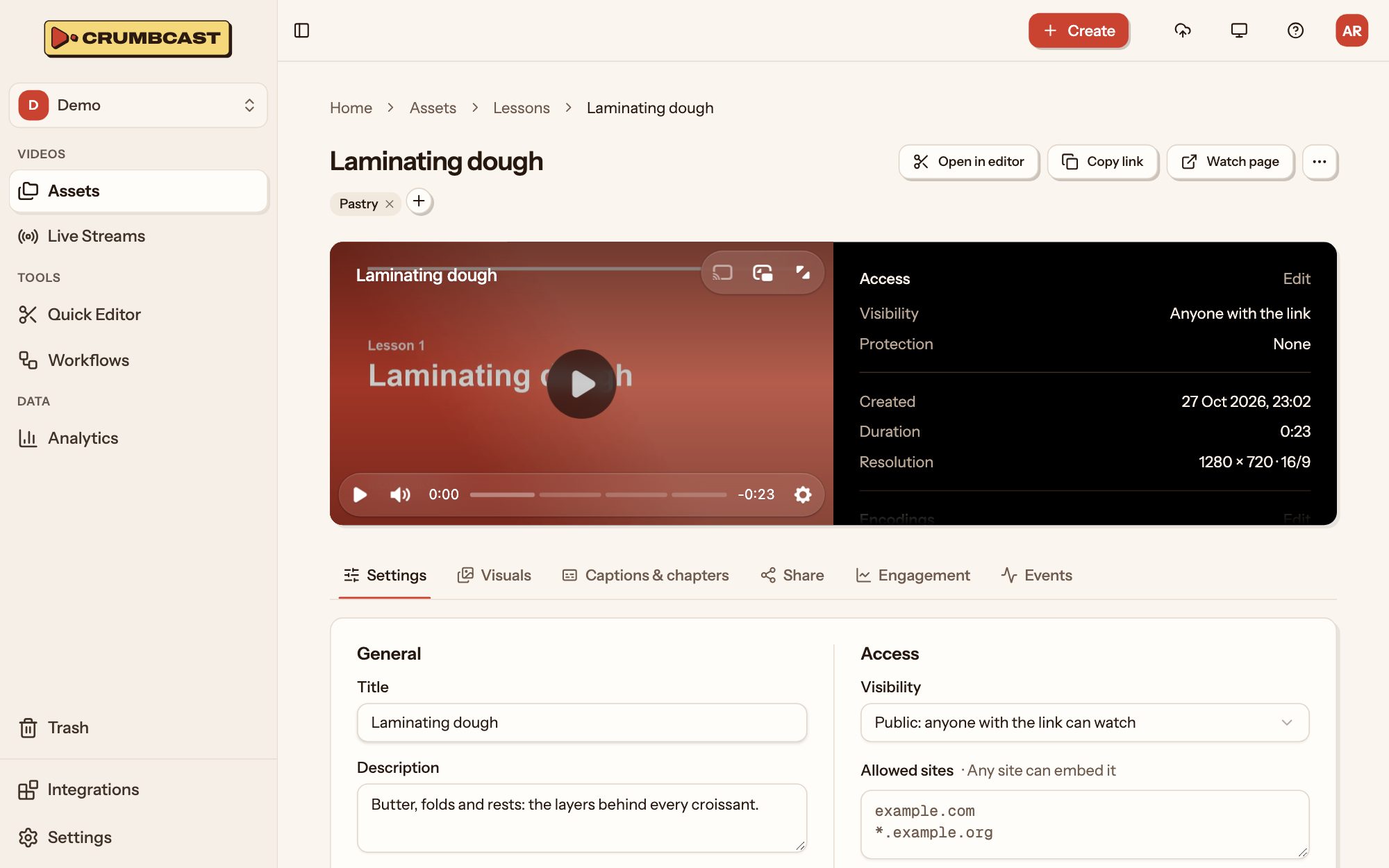
At the top
- Open in editor takes it to the Quick Editor.
- Copy link copies its watch page link; Watch page opens it.
- ⋯ moves it to a folder (Move to), copies its ID for the API, runs a workflow on it, or deletes it.
The panel beside the player sums it up; each part's Edit jumps to where it's changed.
The tabs
- Settings: its title, description, player, ads, who can watch, metadata, and how it's processed. The rest of this page.
- Visuals: its thumbnail, timeline previews and GIFs. See Thumbnails and GIFs.
- Captions & chapters: see Captions and chapters.
- Share: its links, embed code and viewer links. See Sharing and embedding.
- Engagement: who watched it, and how much. See Analytics.
- Events: what happened to it, oldest first: its upload, encodings, thumbnails and edits. Look here first when something isn't as you expect.
- Leaks, on a video with forensic watermarks: see Who can watch.
Details
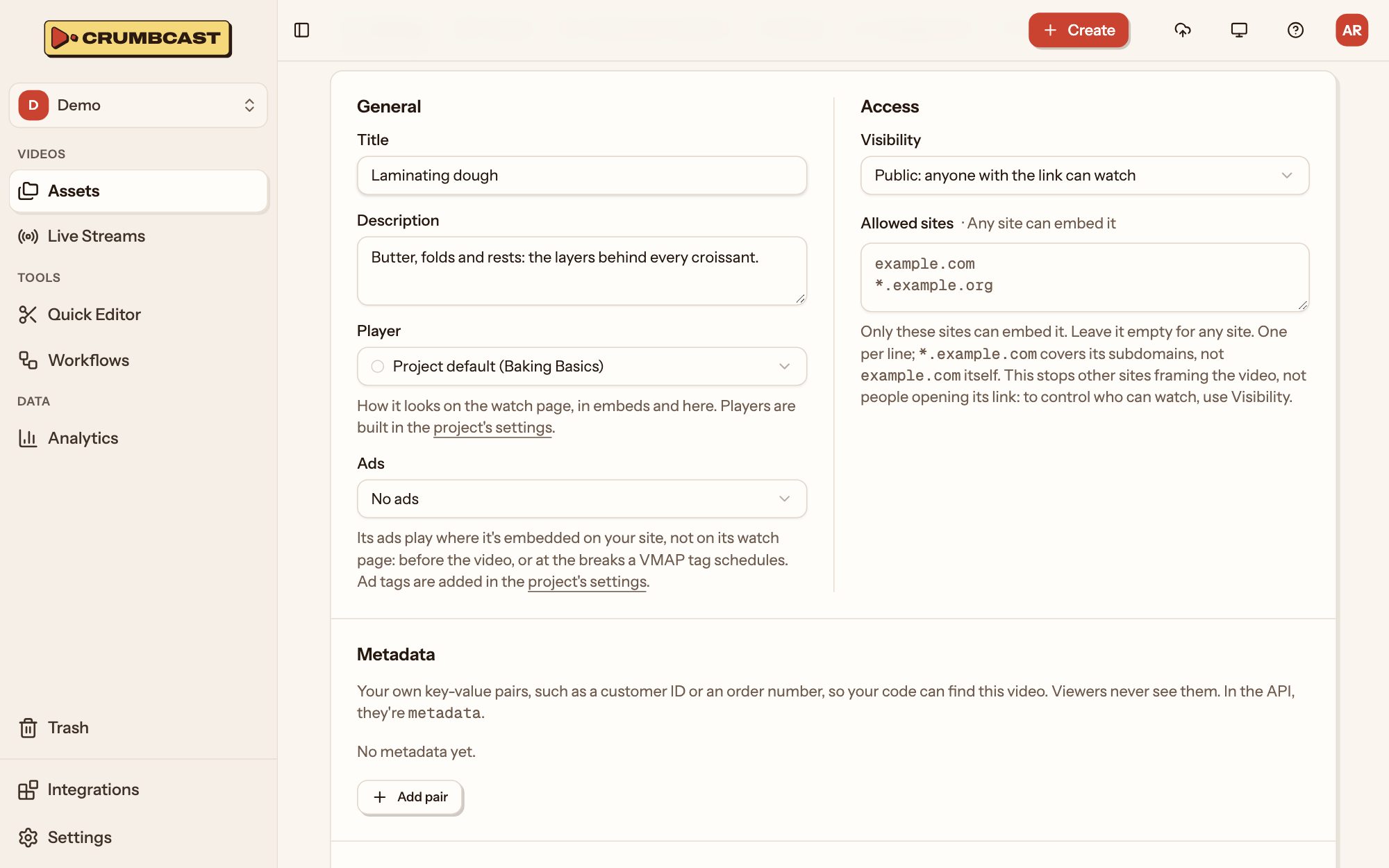
On the Settings tab, under General:
- Title and Description show on its watch page and in shared links.
- Player picks how it looks: the project's default, or another of its players.
- Ads picks the ad tag its embeds play, or none.
Access sets who can watch it and which sites may embed it; Who can watch explains each choice.
Metadata keeps your own key-value pairs on it, such as a customer ID or an order number. Viewers never see them; your code can find the video by them.
Processing
Further down, Processing holds what changes the video's files, so changing any of it processes the video again. You're asked first, and it plays as it is until that's done.
- Protection and Watermarks: see Who can watch.
- Audio: Normalise loudness evens out its volume, so it plays as loud as your other videos. Its original sound is kept.
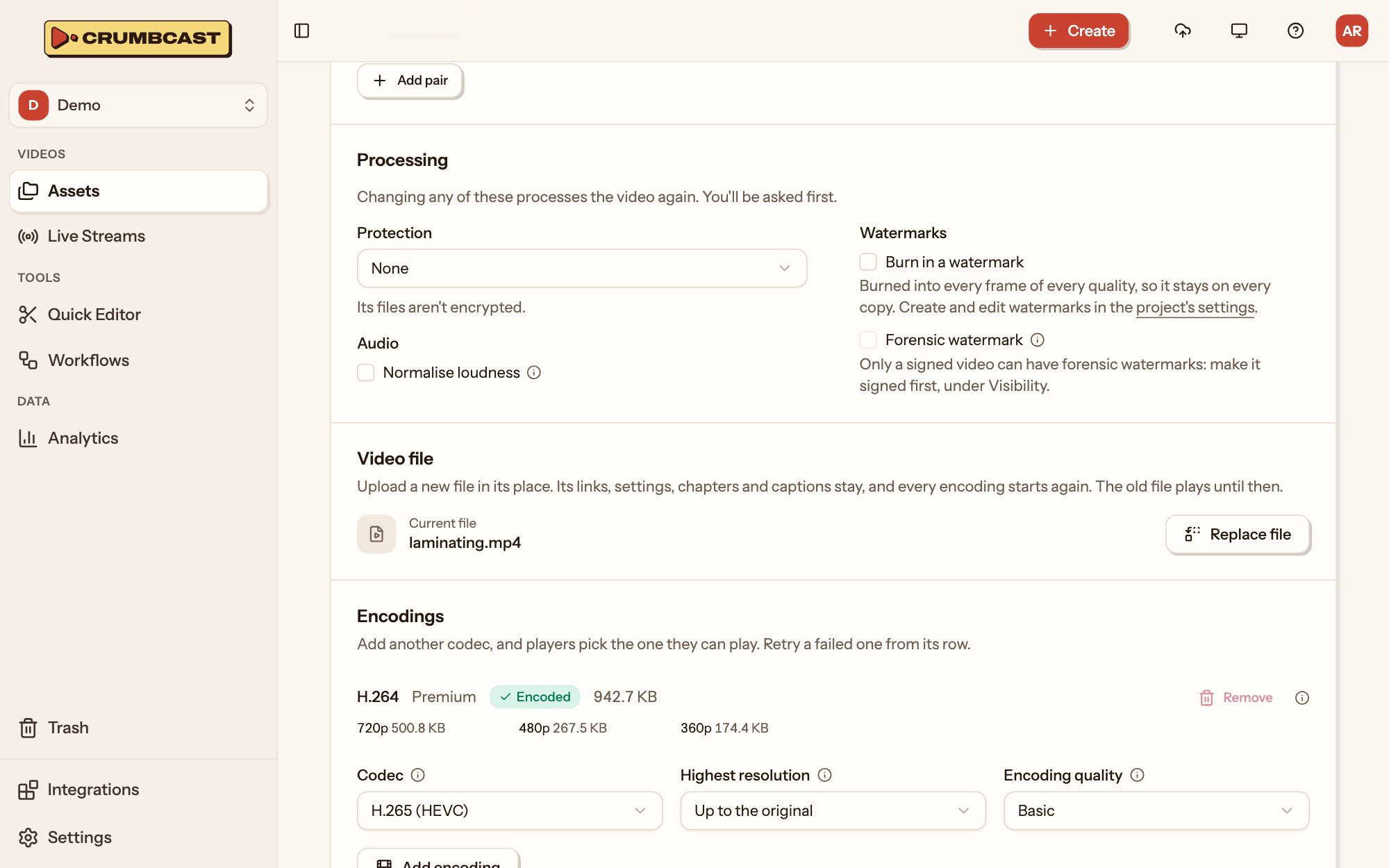
Encodings
Encodings lists each codec the video has, with every resolution's size.
- Add encoding: pick a codec (H.264, H.265 or AV1), the highest resolution and the encoding quality. Players pick the codec they can play.
- Retry one that failed, from its row.
- Remove one you don't need, to free its storage. You can't remove the only one that plays.
Video file
Video file shows the file it was made from. Replace file uploads another in its place: its links, settings, chapters and captions stay, and every encoding starts again once the new file is in. The old file plays until then.
Delete it
⋯ → Delete asset. Where your plan has the trash, it goes there, and can be restored for as long as the trash keeps things; its links stop working meanwhile. Organising assets has more.