Your team
An organisation holds its members, its plan and its storage; its work is in projects, each with its own assets, live streams and settings. Organisation settings are under Settings → Organisation, for its owners and admins.
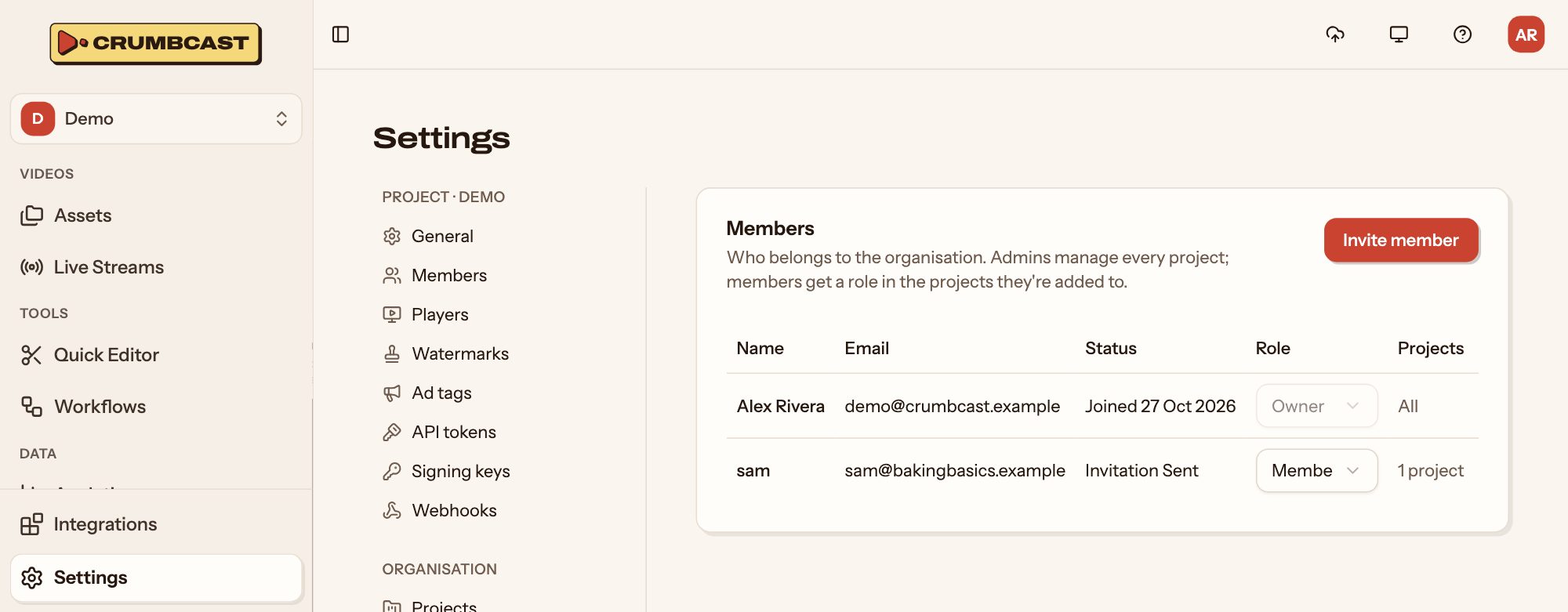
Invite someone
- Go to Settings → Organisation → Members, and click Invite member.
- Type their email, and pick their Role in the organisation:
- Admin: manages the organisation, and is an admin of every project.
- Member: gets a role in the projects you add them to.
- For a member, pick their projects and their role in each.
- Click Send Invitation.
They get an email to join. Until they do, they're listed as Invitation Sent. Remove someone from the organisation and they lose access to every project right away; what they made stays.
Roles in a project
| Viewer | Editor | Admin | |
|---|---|---|---|
| See assets, live streams and analytics | ✓ | ✓ | ✓ |
| Upload, change and delete assets; run live streams | ✓ | ✓ | |
| The project's settings, keys, tokens and members | ✓ |
The organisation's owners and admins are admins of every project. Making projects, and the organisation's members, storage and plan, are theirs alone.
To change who's in one project, go to its Settings → Members: Add from organisation brings in someone already in the organisation, and each member's role can be changed there, or removed.
Projects
Settings → Organisation → Projects lists the organisation's projects. Click New project to make one (or use the project switcher at the top left). Each project keeps its own assets, members, keys and settings: one per client, team or site keeps them apart.
A project's Settings → General renames it, sets where its new assets are stored, and deletes it with everything in it. The organisation's last project can't be deleted.
How many projects and members you can have depends on your plan.
Single sign-on
On plans that have it, Settings → Organisation → Single sign-on lets members sign in through your identity provider (Okta, Microsoft Entra ID, Google Workspace, or any OpenID Connect provider):
- Make an app for Crumbcast in your provider, with the redirect URI the page shows.
- Paste your provider's Issuer URL, and the app's Client ID and Client secret, then save.
- Choose whether to Require single sign-on: then members can't sign in with a password or Google. Owners still can, in case your provider is down.
Invite members as usual; they sign in through your provider.
Audit log
On plans that have it, Settings → Organisation → Audit log shows who changed members, access, keys and your plan, and from where. It's recorded on every plan and kept for 13 months, so upgrading shows the last 13 months straight away.