Quick Editor
The Quick Editor cuts, crops and merges videos in the browser. What you make is saved as a new asset, or in place of the one you started from.
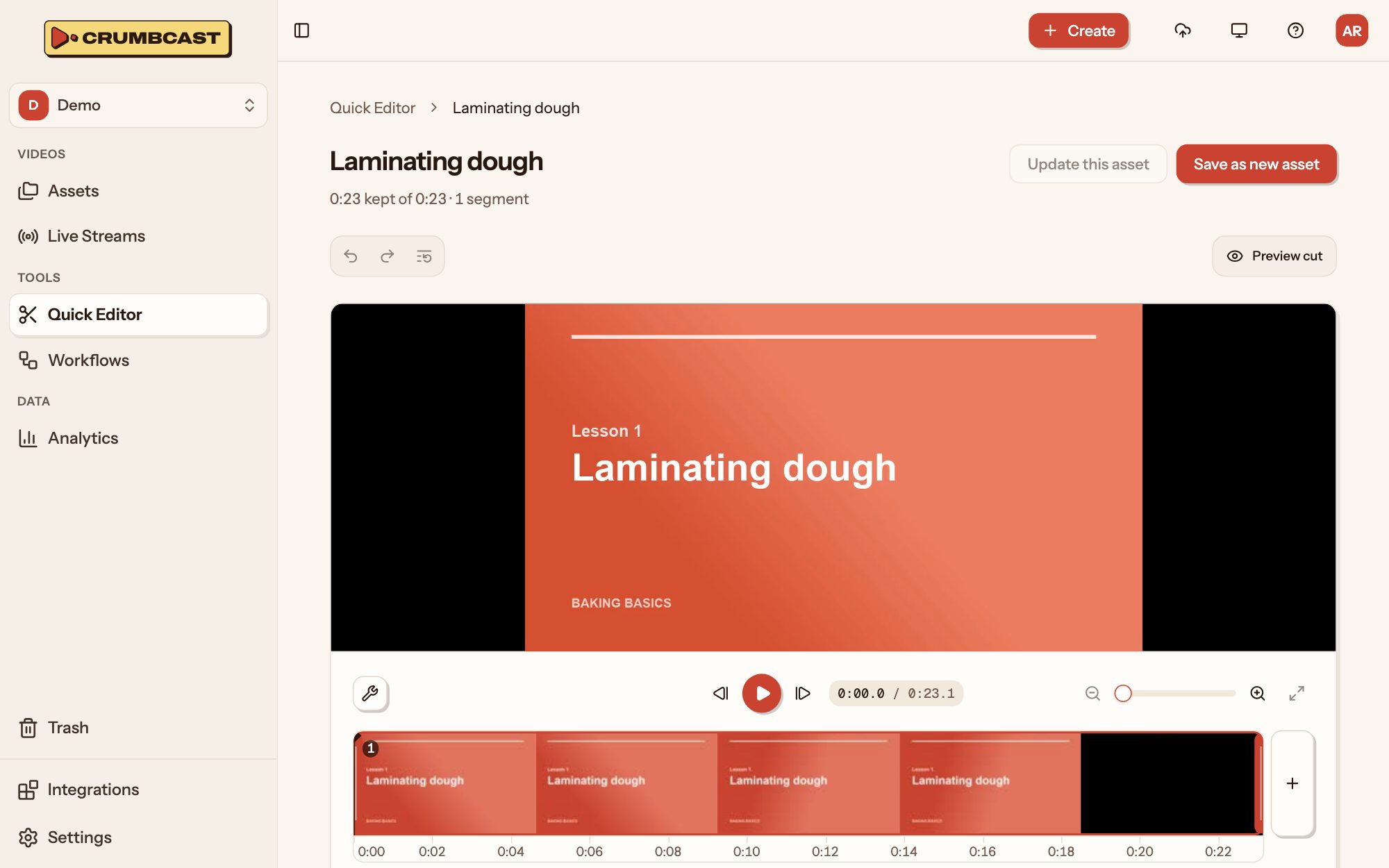
Open a video in it
Click Quick Editor in the sidebar and pick an asset, or click Open in editor on a video's page. A video can be edited once it plays.
The page has the player, its controls and a timeline of the whole video, in segments, with previews along it. Zoom the timeline with the magnifiers, or ⌘/Ctrl and scroll.
Cut
A video starts as one segment. To keep only parts of it:
- Move the playhead to where you want a cut, and click Split (the scissors). The segment splits there.
- Click a segment to select it, then Remove to cut it away.
- Or move a segment's ends: drag them, or select it and use Set start and Set end to put them at the playhead.
Preview cut plays only what's kept. Undo, Redo and Start over are beside it. The line under the title says how much you're keeping, in how many segments.
Crop and rotate
Crop draws a box on the picture: drag it, or its handles, and pick an Aspect (such as 9:16 for phones), or keep it free. Rotate left and Rotate right turn the picture. Where the editor is narrow, these are under Editing tools.
Merge
Add video puts another asset after the rest, whole. Use its ⋯ to move it earlier or later in the sequence, or take it out. A merge always saves as a new asset.
Save
- Save as new asset makes a new video of what's kept, in the same folder. You pick its title, then its settings, which start as the original's. The original stays as it is.
- Update this asset trims the video itself: the rest is deleted for good. Its chapters and captions move with the cut, and every encoding starts again. It plays as it was until then.
To trim a video right after uploading it, click Trim on the toast that says it's up.