Storage
Videos are kept in a storage: the platform's, or an S3-compatible bucket of your own (AWS S3, Cloudflare R2, Backblaze B2, Wasabi and the like). What's kept in your own isn't billed for storage or delivery. Storages are the organisation's, set up by its owners and admins, on plans that have your own storage.
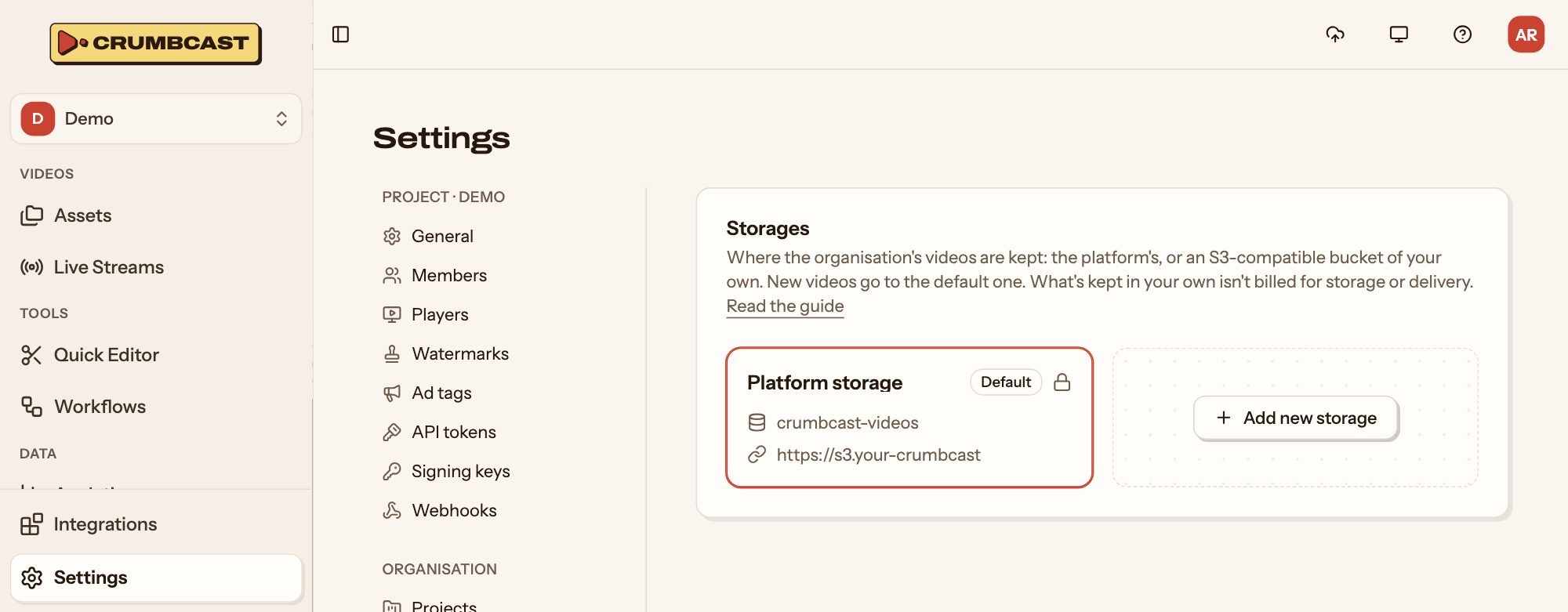
Add your own bucket
- Go to Settings → Organisation → Storages, and click Add new storage.
- Fill in its Endpoint URL, Access Key, Access Secret and Bucket Name, from your provider.
- Optionally, a Public URL: a public bucket or CDN address to play from. Leave it empty, and players get short-lived signed links instead.
Then use its menu's Test: Crumbcast writes a test file, reads it back the way players will, and says what's wrong if it can't. The bucket needs CORS rules for your Crumbcast's address; the storage guide has them, with each provider's settings.
Which storage a video goes to
New videos go to the organisation's default storage. To change it, use a storage's menu, Set as default. A project can send its new assets elsewhere, in its Settings → General; an upload can pick its own, and so can a workflow.
A video stays in the storage it was made in: it can't be moved later.
Private videos need a private storage
Password, signed, encrypted and forensic videos need a storage whose files aren't public, or they could be fetched around their protection. A storage with a Public URL can't keep them, unless the CDN at that URL serves only signed links: then turn on CDN signing (CloudFront signed URLs, or Bunny token authentication) and give it the CDN's key. The dashboard says so when a storage can't keep what a video asks for.
Delete one
Deleting a storage only makes Crumbcast forget its connection: what's in the bucket stays. Only a storage with no videos can be deleted.