Workflows
A workflow is a saved set of settings and steps: who can watch, how it's encoded, its watermark and player, an intro and outro, captions, chapters. Pick it when you upload or import a video, and every one comes out the same, without setting each by hand.
Make one
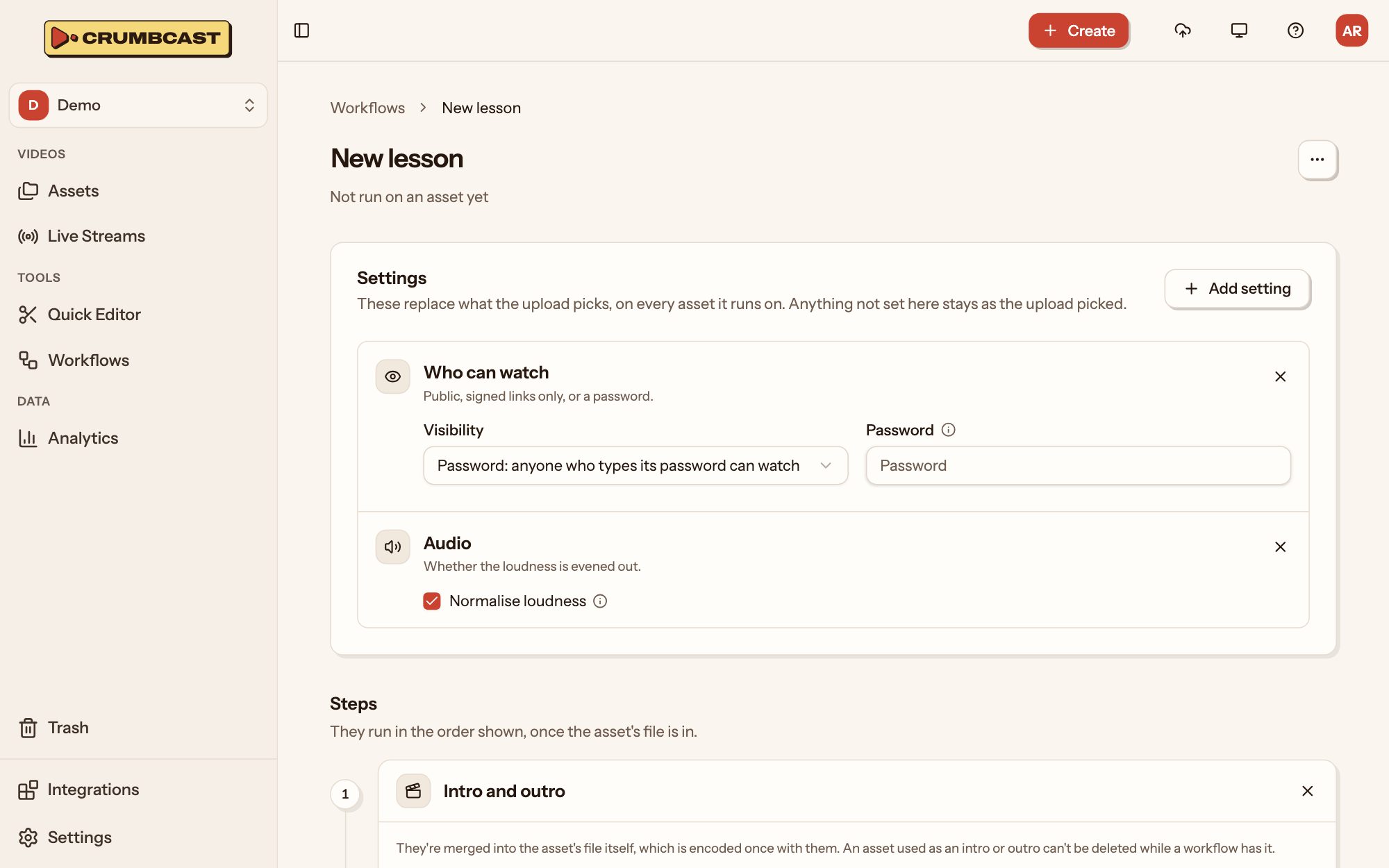
- Click Workflows in the sidebar, then New workflow. Name it (for example, "Course lesson") and click Next.
- Under Settings, click Add setting for each thing it should decide.
- Under Steps, click Add step for each thing it should do.
- Click Save.
Settings take the place of what the upload picks, on every video it runs on. Anything not set stays as the upload picked:
- Encodings: codecs and resolutions, and the Encoding quality.
- Who can watch: public, signed, or a password.
- Protection and Logo watermark: see Who can watch.
- Audio: whether the loudness is evened out.
- Player and Ads: the player and the ad tag.
- Storage: where its files are kept, if your organisation has more than one.
- Metadata: key-value pairs added to each video's own.
Steps run in the order the workflow shows, once the video's file is in:
- Intro and outro: other assets of the project, merged in before and after it at its size. They're merged into the file itself, which is then encoded once. An asset used as an intro or outro can't be deleted while a workflow has it.
- Captions from the speech, in a language you pick or the one spoken.
- Chapters from the captions, which need the captions step first.
Use it
- On upload or import: pick it under Workflow in the upload dialog. A workflow's page also has Upload with it.
- On a video that's in: on its page, ⋯ → Run workflow. Its encodings, watermark and protection change (every encoding starts again if they do), and its intro and outro are merged in again, even if it has them already.
While a workflow runs, the video's page shows each step: waiting, running, done or skipped.
Change one
Changes apply from the next video it runs on; videos it ran on keep what it did. A workflow's ⋯ menu duplicates or deletes it.