Modify videos
Once a video is in, everything about it can still change: its details, where it's filed,
its captions, chapters and thumbnail, its picture and length, and how it's encoded. Each
takes an editor token; most answer with the whole video as it is now.
What may be done now
Some changes wait for others: a video can't be trimmed while it's encoding, nor get
captions made while some are still being made. Every video's changes say what it may do
now, and refused why not:
"changes": {
  "trim": false,
  "make_captions": true,
  "run_workflow": false,
  "…": "…",
  "refused": { "trim": "encoding", "run_workflow": "encoding" }
}
Read them rather than guessing from its formats or source_state. A change made at the
wrong time answers 409, with why.
Details
Update Video changes only the fields sent: its title,
description, folder, labels, who may watch and the sites that may embed it, its player,
its chapters and its metadata.
curl -X PATCH https://your-crumbcast/api/v1/videos/$VIDEO_ID/ \
  -H "Authorization: Bearer $CRUMBCAST_TOKEN" \
  -H "Content-Type: application/json" \
  -d '{"title": "Launch day (full)", "description": "The whole keynote."}'
Folders and labels
A video is in one folder, or none, and has any of the project's labels. Make them with Create Folder and Create Label; then file videos many at a time:
curl https://your-crumbcast/api/v1/projects/$PROJECT_ID/videos/move/ \
  -H "Authorization: Bearer $CRUMBCAST_TOKEN" \
  -H "Content-Type: application/json" \
  -d "{\"video_ids\": [\"$VIDEO_ID\"], \"folder_id\": \"$FOLDER_ID\"}"
Add Label to Videos, Remove Label from Videos
and Delete Videos work on many at once in the same way.
List Videos finds them again, by folder, search, and order.
Metadata
A video's metadata is key-value pairs of your own: a customer's ID, an order, where it
came from. Crumbcast only keeps them. Viewers never see them, and every
webhook about the video carries them, so your code can tell which video
an event is about without looking it up. Give them when you upload or import the video,
or change them later. Update Video replaces them all, and {} removes them:
curl -X PATCH https://your-crumbcast/api/v1/videos/$VIDEO_ID/ \
  -H "Authorization: Bearer $CRUMBCAST_TOKEN" \
  -H "Content-Type: application/json" \
  -d '{"metadata": {"customer_id": "c-42", "order": "1009"}}'
A video has at most 50 pairs. A key is 1 to 40 letters, digits, _, - and ., and a
value is any text up to 500 characters (values are always strings). List Videos finds
videos by them, key:value, and finds only videos that have every pair you give:
curl -G https://your-crumbcast/api/v1/projects/$PROJECT_ID/videos/ \
  -H "Authorization: Bearer $CRUMBCAST_TOKEN" \
  --data-urlencode "metadata=customer_id:c-42"
A clip starts with its video's metadata. A workflow can add pairs of its own: an upload or
import that picks it, or a video it runs on again, gets them added to the video's, the
workflow's value in place of the video's where both have a key (and still 50 at most, or
it's refused with a 400). Don't confuse it with video_metadata, which is
what Crumbcast read from the file (its size, length and shape).
Captions
Upload a WebVTT or SRT file, a track per language:
curl https://your-crumbcast/api/v1/videos/$VIDEO_ID/captions/ \
  -H "Authorization: Bearer $CRUMBCAST_TOKEN" \
  -F language=en \
  -F file=@launch.en.vtt
Or have them made from what's said in the video, in the language you name or the one it hears:
curl https://your-crumbcast/api/v1/videos/$VIDEO_ID/captions/generate/ \
  -H "Authorization: Bearer $CRUMBCAST_TOKEN" \
  -H "Content-Type: application/json" \
  -d '{"language": "en"}'
The track is processing until it's done; a video.captions.ready webhook
says when. Either kind can be corrected afterwards: Get Caption Cues
gives its cues (start, end, text), and Update Caption Cues
puts yours in their place, as players get them from then on.
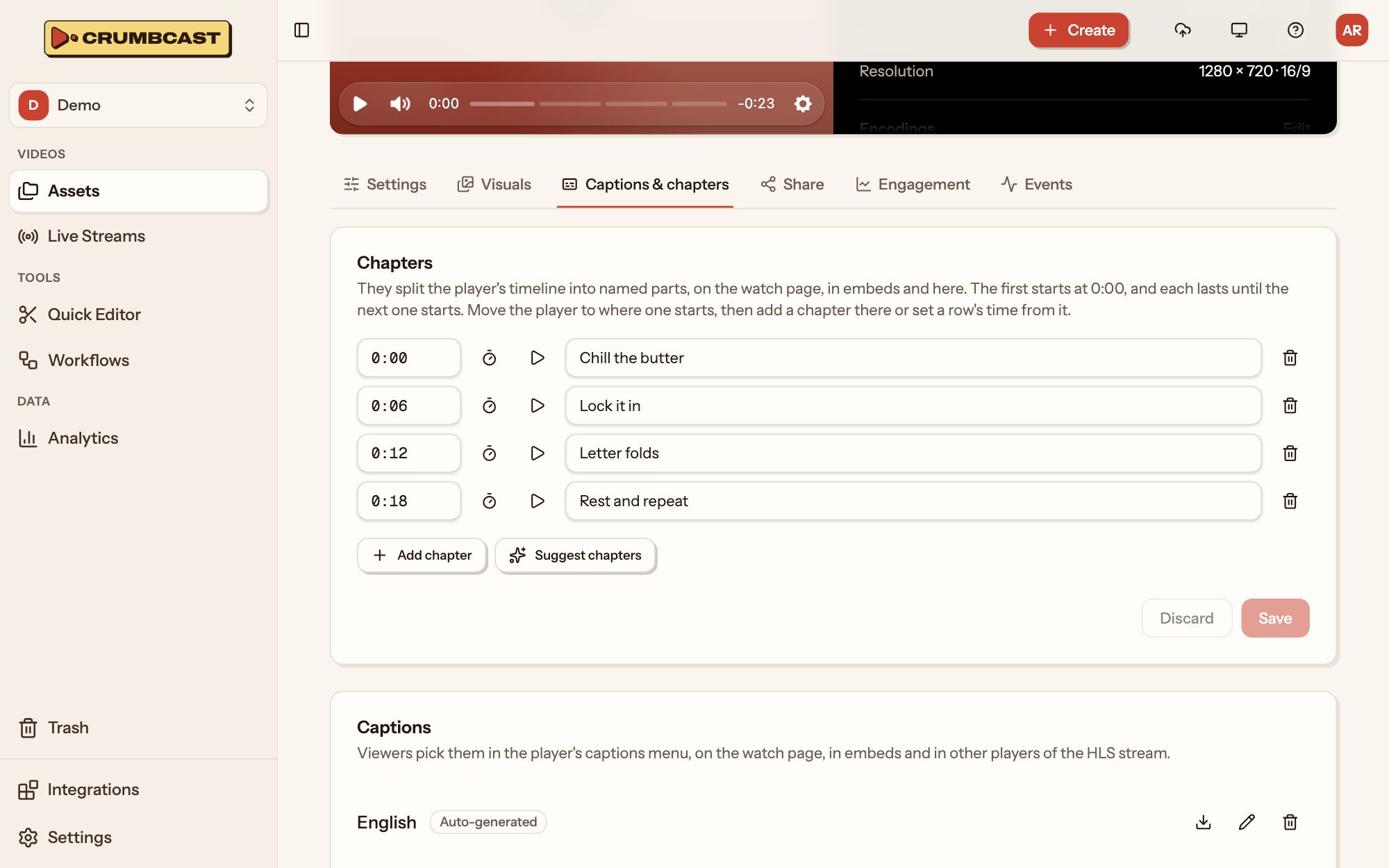
Chapters
Chapters are a list of where each part starts, the first at 0, each lasting until the next:
curl -X PATCH https://your-crumbcast/api/v1/videos/$VIDEO_ID/ \
  -H "Authorization: Bearer $CRUMBCAST_TOKEN" \
  -H "Content-Type: application/json" \
  -d '{"chapters": [{"start": 0, "title": "Welcome"}, {"start": 95.5, "title": "The new player"}]}'
Suggest Chapters reads chapters from a video's captions for you to look over: nothing is saved until you send them back as above.
Thumbnail
A frame of the video, by its time in seconds:
curl -X PUT https://your-crumbcast/api/v1/videos/$VIDEO_ID/thumbnail/ \
  -H "Authorization: Bearer $CRUMBCAST_TOKEN" \
  -H "Content-Type: application/json" \
  -d '{"time": 42}'
Or an image of your own (JPEG, PNG or WebP, up to 10 MB) with Upload Video Thumbnail.
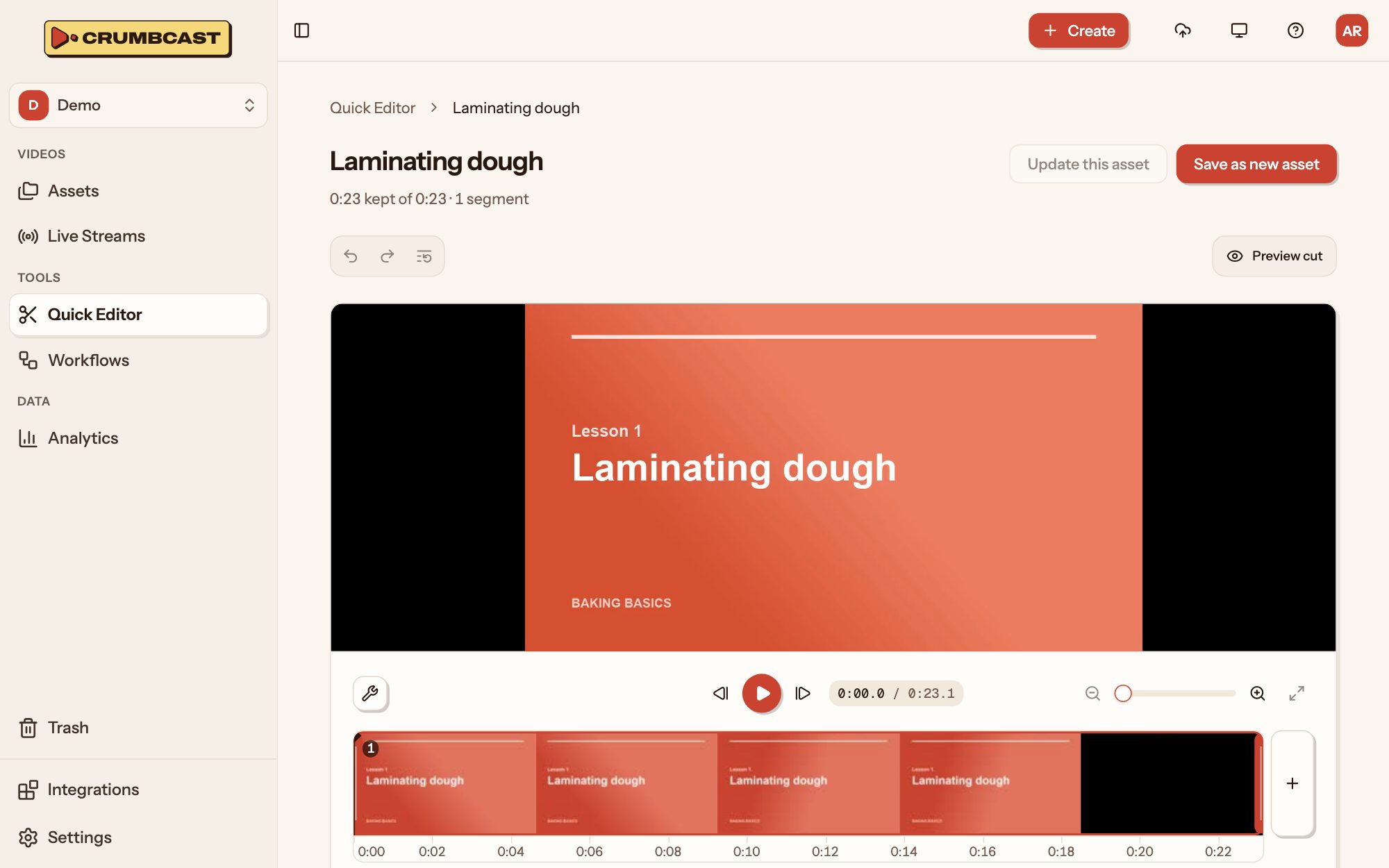
Trimming and clipping
Both keep the parts of the video you list, in time order, joined, and can also turn the
picture (rotate: 90, 180 or 270) and crop it (crop, as shares of the picture from 0
to 1). Each part is at least half a second long.
- Trim Video cuts the video itself: what's cut away is gone. It plays as it was until the cut is made, then it's encoded again; its chapters, captions and thumbnail move with the cut.
- Clip Video makes a new video of those parts, filed, kept and encoded as this one is unless you say otherwise; this one stays as it is.
# Keep 0:10–1:30 and 2:00–2:45, as a square
curl https://your-crumbcast/api/v1/videos/$VIDEO_ID/clips/ \
  -H "Authorization: Bearer $CRUMBCAST_TOKEN" \
  -H "Content-Type: application/json" \
  -d '{
    "title": "Launch day, the highlights",
    "ranges": [{"start": 10, "end": 90}, {"start": 120, "end": 165}],
    "picture": {"crop": {"x": 0.21875, "y": 0, "width": 0.5625, "height": 1}}
  }'
A clip can take parts of other ready videos of the project too, which merges them: give
those parts a video_id. Both answer 202; a clip's new video gets its
video.created and video.ready webhooks as an upload does.
GIFs
Any part of a video as an animated GIF, up to 480 pixels wide and 15 frames a second unless you ask for others:
curl https://your-crumbcast/api/v1/videos/$VIDEO_ID/gifs/ \
  -H "Authorization: Bearer $CRUMBCAST_TOKEN" \
  -H "Content-Type: application/json" \
  -d '{"start": 12, "end": 16}'
It's processing until it's made, then at /api/v1/videos/<id>/gifs/<gif id>.gif.
Encodings
A video has up to one format per codec: H.264, H.265 and AV1, each up to the highest quality you choose.
- Create Format encodes it in another codec, or again in one that failed.
- Retry Format encodes only a failed format's failed parts again; the rest of it goes on playing.
- Delete Format removes one.
- Set Video Audio brings its sound to one loudness (-16 LUFS), or leaves it as it was; it plays as it was meanwhile.
Its protection and watermarks are encoded into its files too: changing them encodes it again. See Access and permissions.
Replacing the file
Replace Video File uploads a new file in place of the video's, as an upload does; its ID, links and settings stay.
Deleting
Delete Video deletes it. On Pro and Business it goes to the
project's trash first, for 30 days unless the project's admins pick otherwise: it's gone from
the project and its links and embeds stop working, but Restore Videos
brings it back as it was, and a video.trashed webhook follows (video.restored once it's
back). Once its time is up, or with Delete Videos For Good
or Empty Trash, it's deleted for good with its files and a
video.deleted webhook follows; List Trash has what's waiting and
when each goes. Without the trash, deleting is for good straight away.
A video that's a workflow's intro or outro can't be deleted until no workflow uses it.