Live streaming
A live stream is a channel you broadcast on as often as you like: from OBS or any encoder, or straight from the browser. Viewers watch on its watch page or in an embed; each broadcast can be saved as a video, and sent on to YouTube, Twitch or any RTMP server as it comes in.
Live streaming depends on your plan, and on your Crumbcast having it on.
Make a live stream
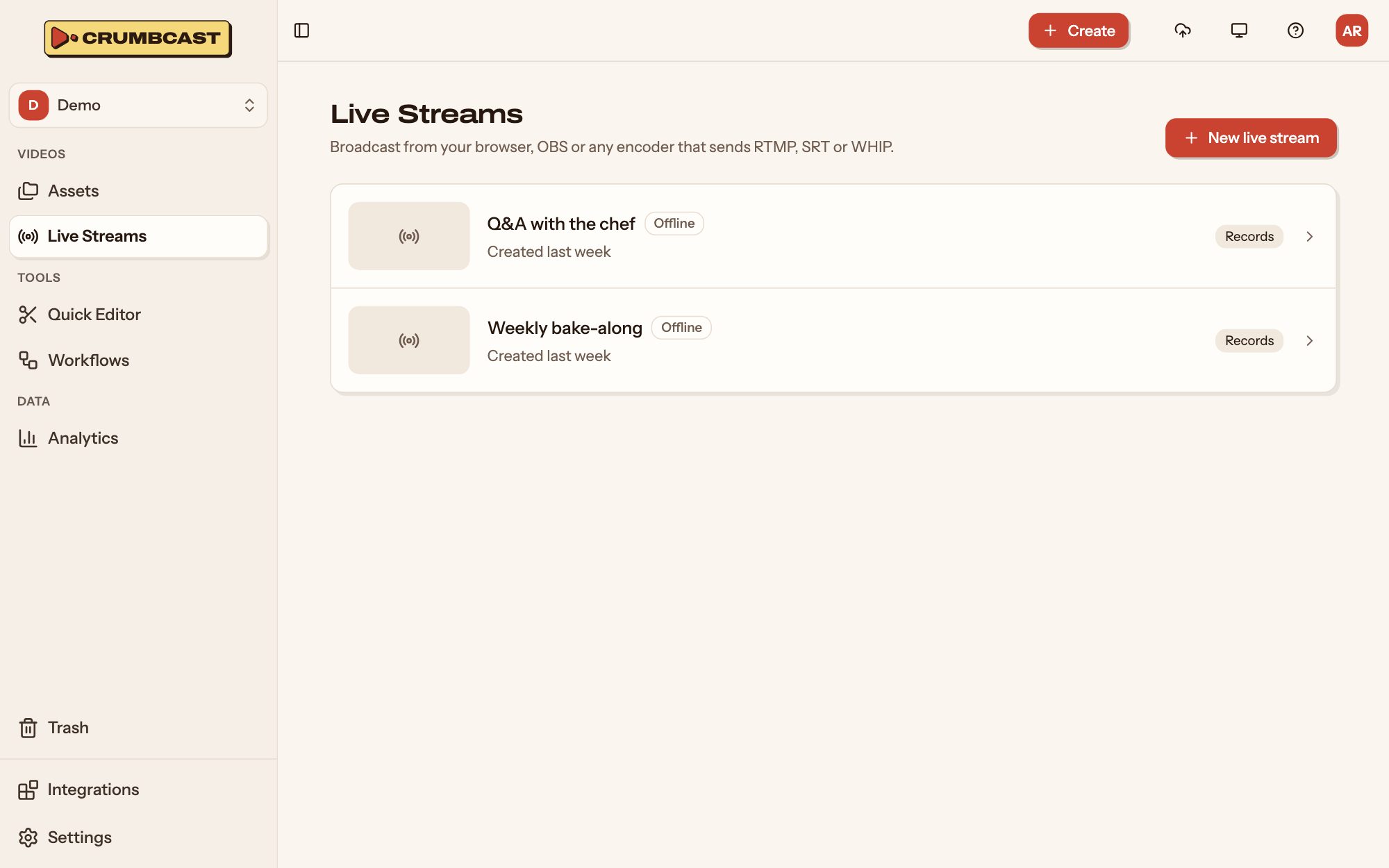
Click Live Streams in the sidebar, then New live stream (or Create → New live stream), and give it a title. Its page has everything below. A live stream stays until you delete it, with the same links and stream key for every broadcast.
Go live from the browser
- Click Go live from the browser.
- Pick Camera or Screen, and your microphone.
- Check what the dialog says about this broadcast: who can watch, whether it's recorded, how far behind viewers are.
- Click Go live. End broadcast when you're done.
Keep the dialog open: closing it ends the broadcast. Watch as a viewer opens the watch page beside it.
Go live from OBS or another encoder
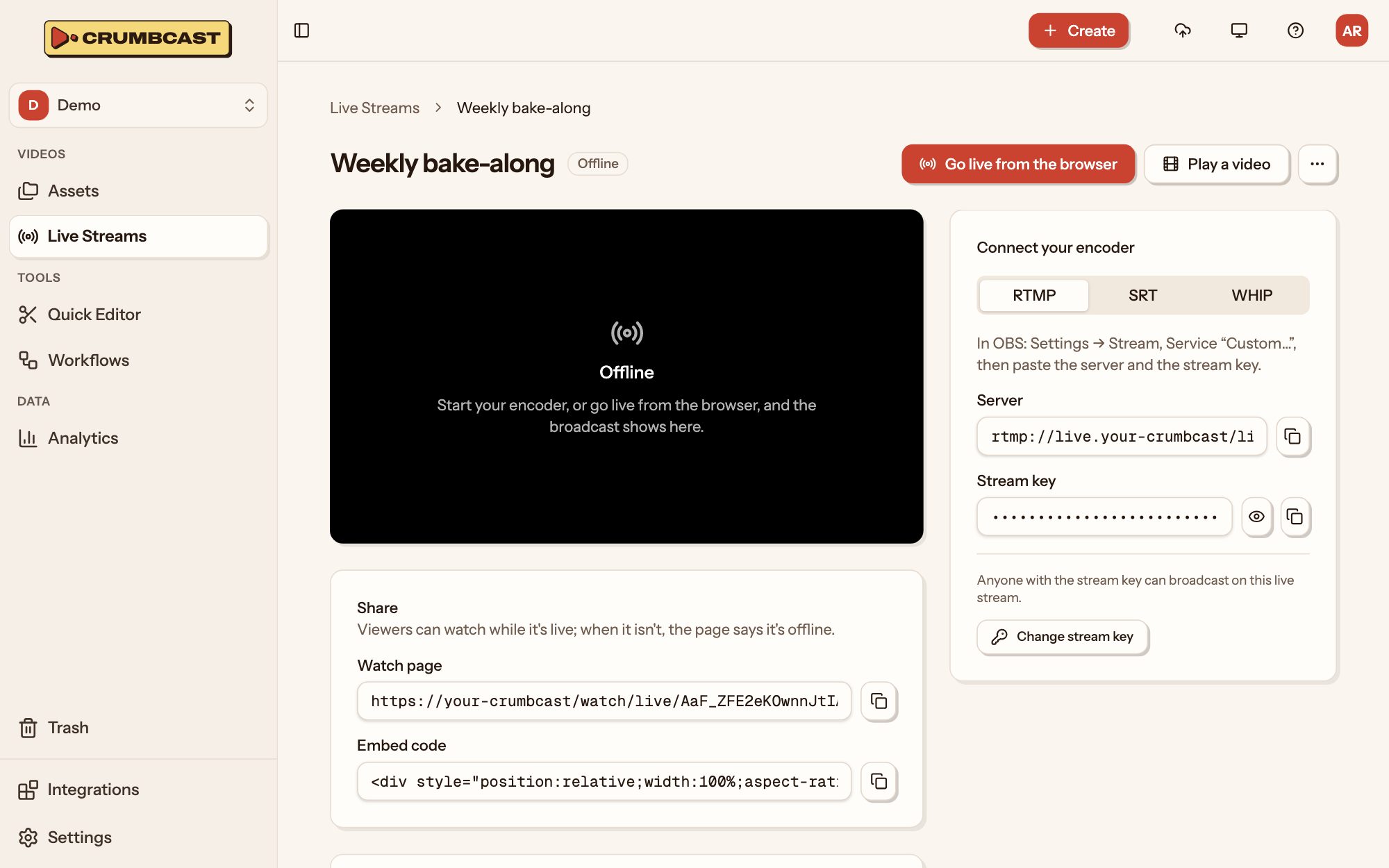
Under Connect your encoder, pick how your encoder sends:
- RTMP (OBS and most encoders): in OBS, Settings → Stream, Service Custom…, then paste the Server and the Stream key.
- SRT: paste the SRT URL, which has the key in it.
- WHIP (OBS 30 and later: Service WHIP): paste the WHIP URL; its bearer token is the stream key.
Start streaming in the encoder, and the broadcast shows on the page within seconds. Anyone with the stream key can broadcast on the live stream: keep it secret, and use Change stream key if it gets out. The old key stops working right away, and a broadcast that's on with it ends.
If the encoder drops, the broadcast carries on if it reconnects soon.
Play a video live
Play a video broadcasts one of the project's videos as if it were live, from the start: now, or at a time you pick. Scheduled ones are listed on the page until they play. It isn't recorded.
Who watches, and how
Under Playback:
- Visibility and Protection, as for videos.
- Latency: Standard (viewers about 8 seconds behind) or Low (about 3, on plans that have it; not with encryption).
- Ads: the ad tag its embeds play before viewers join.
A change applies from its next broadcast. Share has its watch page and embed code; when it's off air, the page says it's offline.
Recordings
Turn on Save each broadcast as a video, and once a broadcast ends it's encoded like an upload and listed with the project's assets. Recordings stay when the live stream is deleted.
Simulcast
Simulcast sends each broadcast on to other platforms as it comes in. Click Add destination, pick the service, and paste its server and stream key from its live dashboard. With a YouTube or Twitch channel connected in Integrations, pick the channel instead: no key to copy, and its viewers there are counted with yours.
Turn a destination on or off with its switch. Changes apply from the next connection, usually the next broadcast. How many destinations you can have depends on your plan.
Stream a Zoom meeting
With a Zoom account connected in Integrations, pick a meeting or webinar on the live stream's page and click Stream it here. Crumbcast sets it up in Zoom with the stream's server and key. Start streaming while the meeting runs, or the host starts it in Zoom: More → Live on Custom Live Streaming Service.
How a broadcast went
Broadcast analytics, further down the page, shows each broadcast: how many watched, the peak, viewers over time, where they watched (here and on each simulcast channel), who they were and how it played.
Thumbnail
A live stream's thumbnail is its broadcast's latest frame, taken every 15 seconds while it's live. Upload image to show your own instead.