Who can watch
Every video, live stream and playlist decides who may watch it. For a video, that's on its Settings tab: Visibility and Allowed sites under Access, Protection and Watermarks under Processing.
Visibility
- Public: anyone with the link can watch.
- Password: anyone who types its password can watch. The simplest way to keep a lesson or a recording to the people you send it to.
- Signed: only people you give a viewer link to, or your own site lets in.
Picking Password asks for the password. It's never shown again; type a new one to change it, which signs out everyone who typed the old one.
Password and signed videos need storage that keeps its files private, with no public link. The page says so if the video's storage can't. Storage has more.
Your organisation's members can watch a signed video in the dashboard without a link.
Viewer links
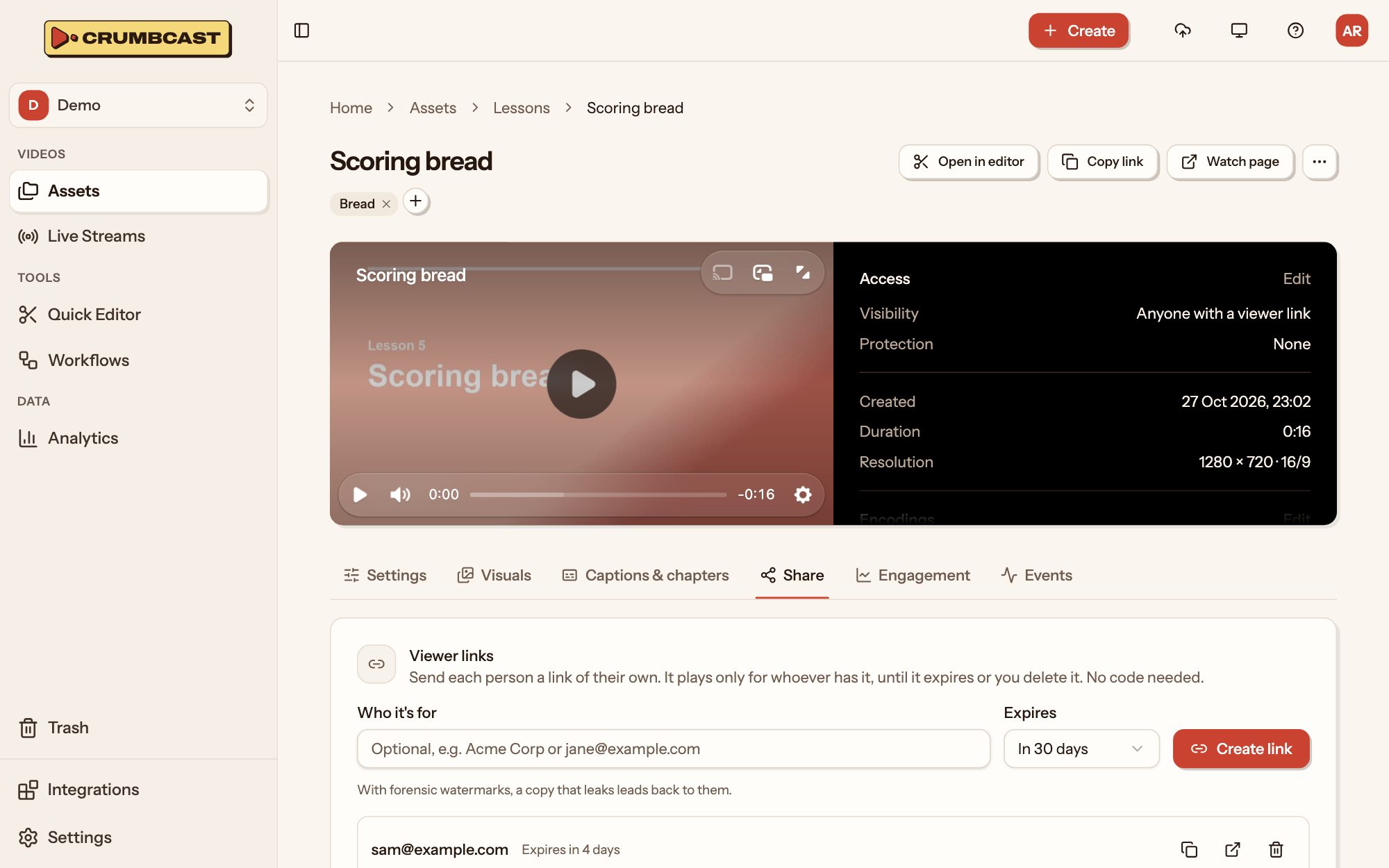
A signed video plays only for whoever has a link to it. To send one without any code, open its Share tab:
- Under Viewer links, say who it's for (optional: a name, a company or an email).
- Pick when it Expires, or Never.
- Click Create link. It's copied, ready to send.
Each link plays only until it expires or you delete it, and deleting it stops it right away. With forensic watermarks on, a copy that leaks leads back to whoever's link played it.
For a site with its own sign-in, your developers can let viewers in with a playback token instead: see For your developers.
Allowed sites
Allowed sites lists the only sites that may embed the video, one per line, such as
example.com; *.example.com covers its subdomains. Leave it empty for any site. This
stops other sites framing your player, not people opening its link: to decide who can
watch, use Visibility.
Protection
- None: its files aren't encrypted.
- AES-128 encryption: its files are encrypted, and whoever may watch gets the key. It plays everywhere and stops downloads, though not a determined viewer.
- DRM (ClearKey): encrypted with the browser's own key system. It protects no more than AES-128, and doesn't play in Safari. Offered only where your Crumbcast has DRM on.
Changing it encrypts the files anew, without encoding the video again. It can be changed once the video stops encoding.
Watermarks
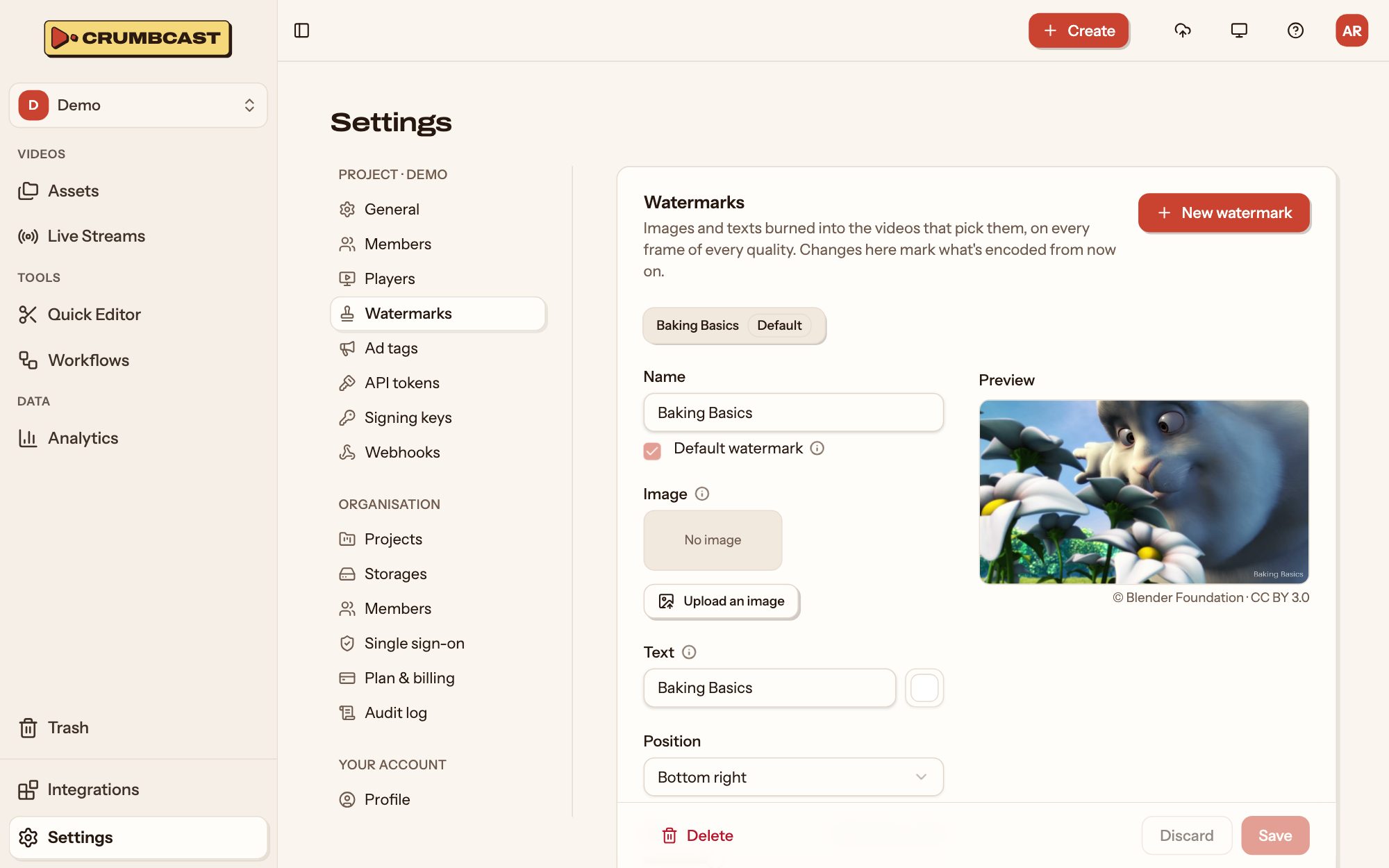
- Burn in a watermark: one of the project's watermarks (an image, a text, or both) on every frame of every quality, so it stays on every copy. Watermarks are made in Settings → Watermarks: upload an image (a PNG with transparency works best), or type a text, then pick its position, size and opacity. One can be the project's default.
- Forensic watermark: below.
Changing the burned-in watermark encodes the video again; it plays as it is until that's done.
Forensic watermarks
With a Forensic watermark, every viewer gets a copy marked as their own. If a copy turns up where it shouldn't, upload it on the video's Leaks tab (Upload a copy): the marks in it are matched to the viewers they were given to, with how sure the match is.
It's only for signed videos, in a storage without a public URL, and every quality is encoded twice. The longer the copy, the surer the answer.
Live streams and playlists
A live stream has the same choices on its page, under Playback; a change applies from its next broadcast. A playlist has its own, on its Settings tab: see Playlists.