Sharing and embedding
Every video has a watch page to send to anyone, an embed code for your own site, and streams for other players. They're all on its Share tab.
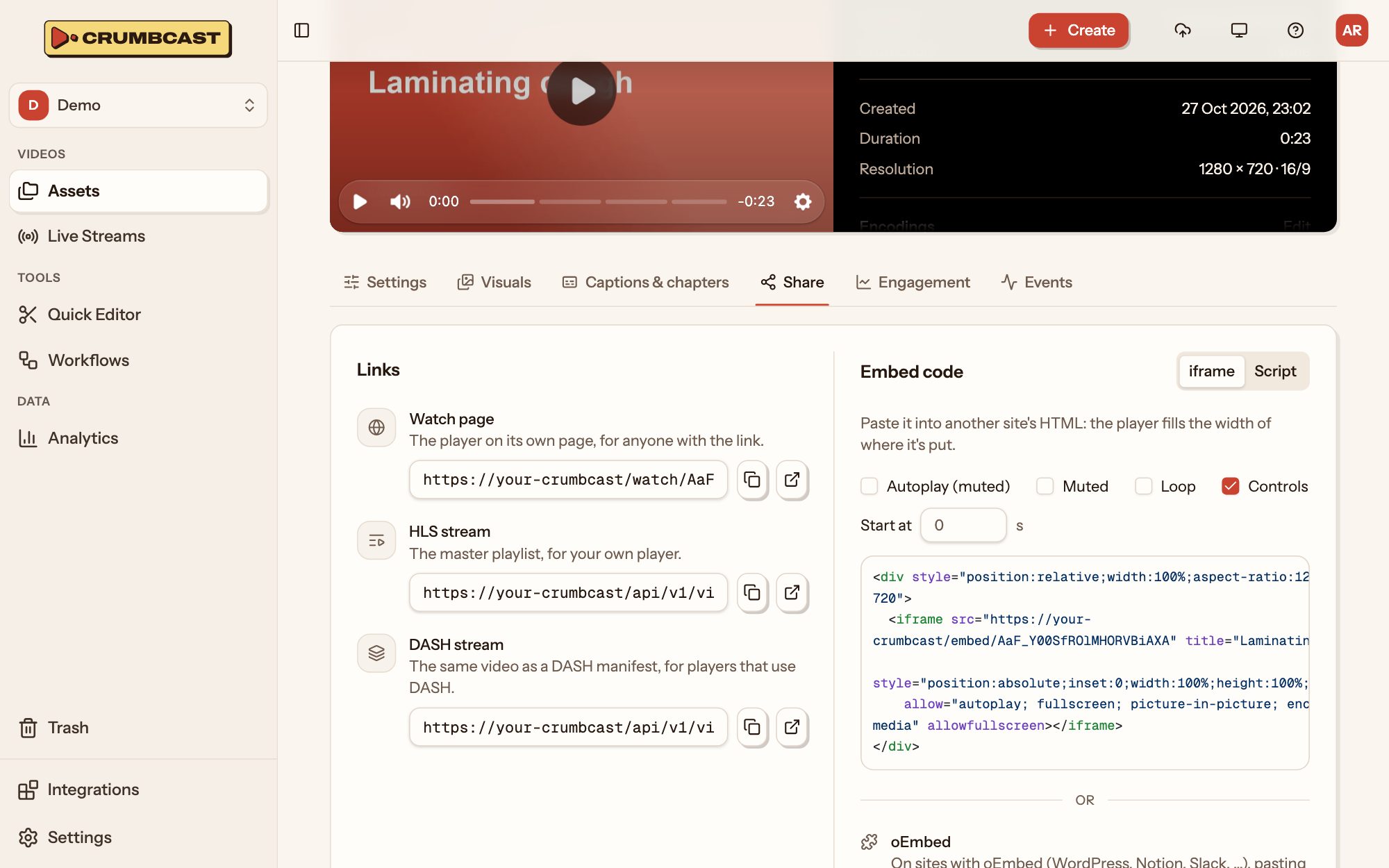
Send a link
Under Links, the Watch page is the player on a page of its own. Copy it, or open it. Copy link at the top of the video's page copies the same link.
Who the link plays for is the video's visibility: anyone, whoever types its password, or, for a signed video, whoever has a viewer link.
Embed it on your site
Under Embed code:
- Pick the player's options: Autoplay (muted), Muted, Loop, Controls, and where it should Start at.
- Pick the iframe, or the Script if your site prefers one (its
data-attributes are the options). - Click Copy embed code, and paste it into your page's HTML.
The player fills the width of where it's put. It looks as the video's player says, and plays your ads if the video has an ad tag. To keep other sites from embedding it, list yours under Allowed sites.
Embeds never use the viewer's Crumbcast sign-in: a password video asks for its password, and a signed one needs a viewer link or token.
Paste a link into a CMS or chat
Sites with oEmbed (WordPress, Notion, Slack and many more) show the player when you paste the watch link. For those that ask for the oEmbed endpoint, it's under oEmbed.
Use your own player
HLS stream and DASH stream are the video's playlists, for a player of your own or another app. Its captions come with the HLS stream.
From the asset list
In Assets, a video's ⋯ → Share copies its watch link, HLS link, DASH link or embed code without opening it.